
Bring in the source photo
Choose a JPG, PNG, or WebP image. The file is read in the current tab and stays on your device during processing.
Remove white paper, shadows, and empty space from a signature photo. Download a clean, transparent PNG in seconds.
Create a transparent signature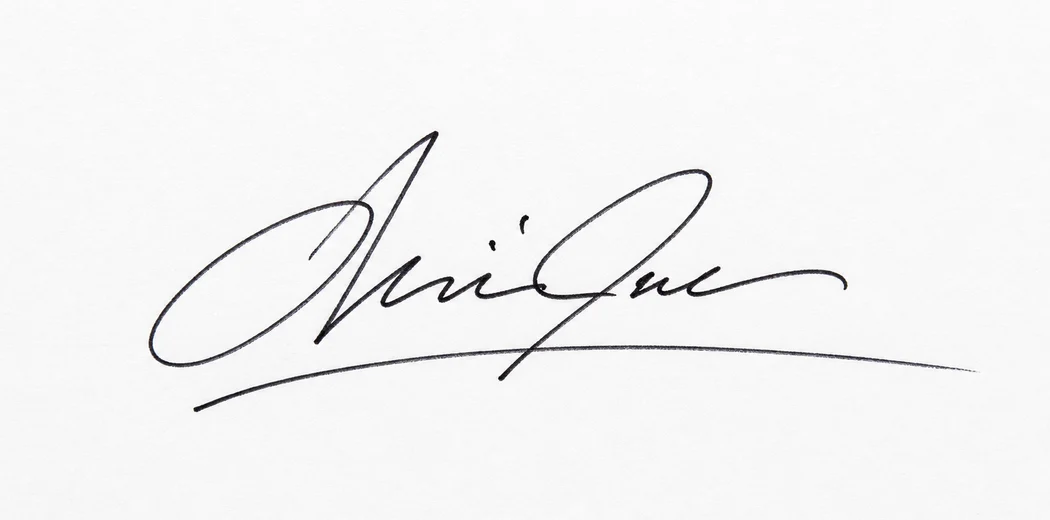
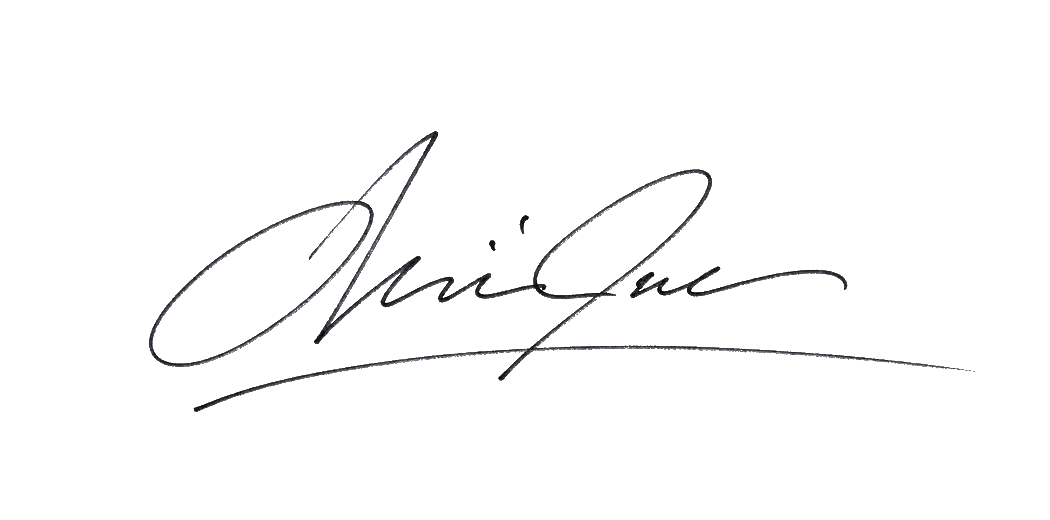 Paper removed
Start with a flat photo or scan, keep the ink you need, and export a transparent PNG for an authorized document.
Choose a clear JPG, PNG, WebP, AVIF, GIF, or SVG. Your signature stays on this device while it is processed.
Prepare the source, check the ink, and place the finished mark where it belongs.
Choose a JPG, PNG, or WebP image. The file is read in the current tab and stays on your device during processing.
Tune the color tolerance, compare before and after, and restore any light stroke that needs more weight.
Download the transparent PNG, then position it in an authorized Word file or PDF without covering the page underneath.
A clean scan, a pale page, and lined paper each need a slightly different check. These examples help you choose a source before signing a form.
Turn a phone photo of a dark pen signature into a compact mark with no paper-colored box.
Recover a light cursive line from a scan while keeping the original file inside your browser.
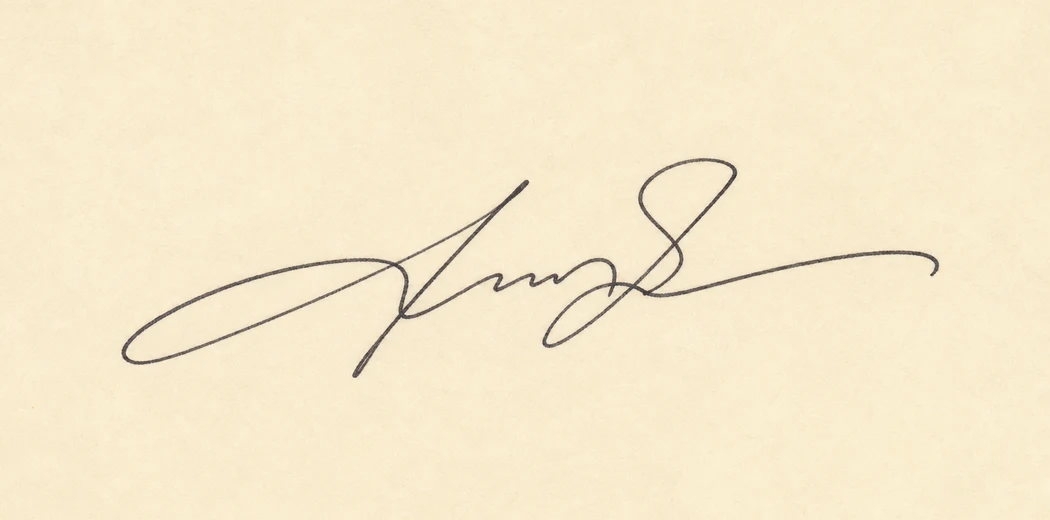
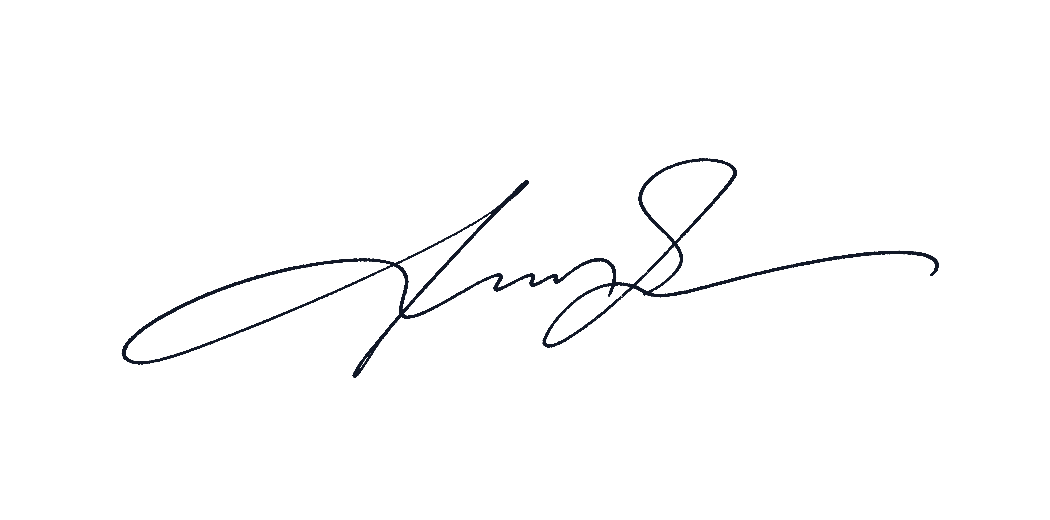
Preview how blue strokes survive paper texture and nearby ruling before you place the PNG in a form.
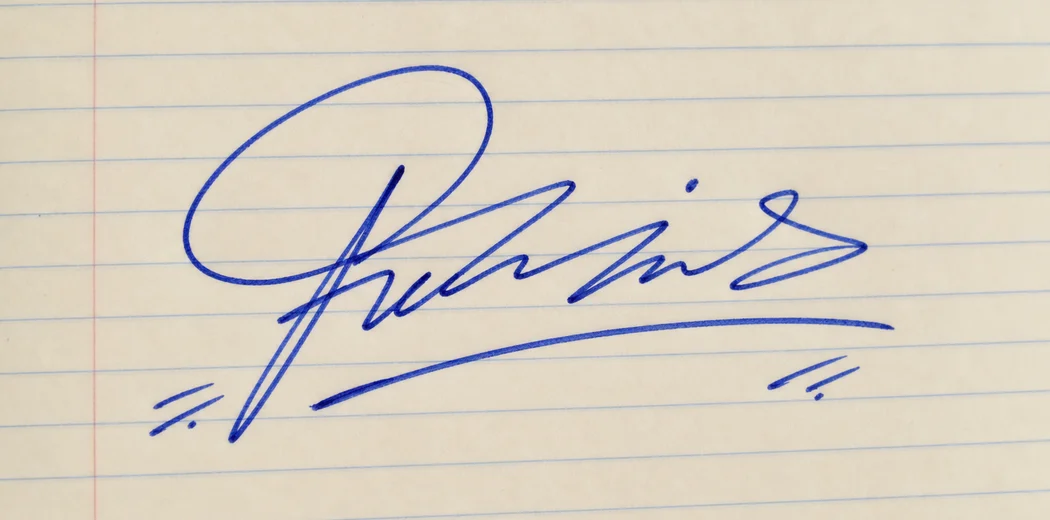
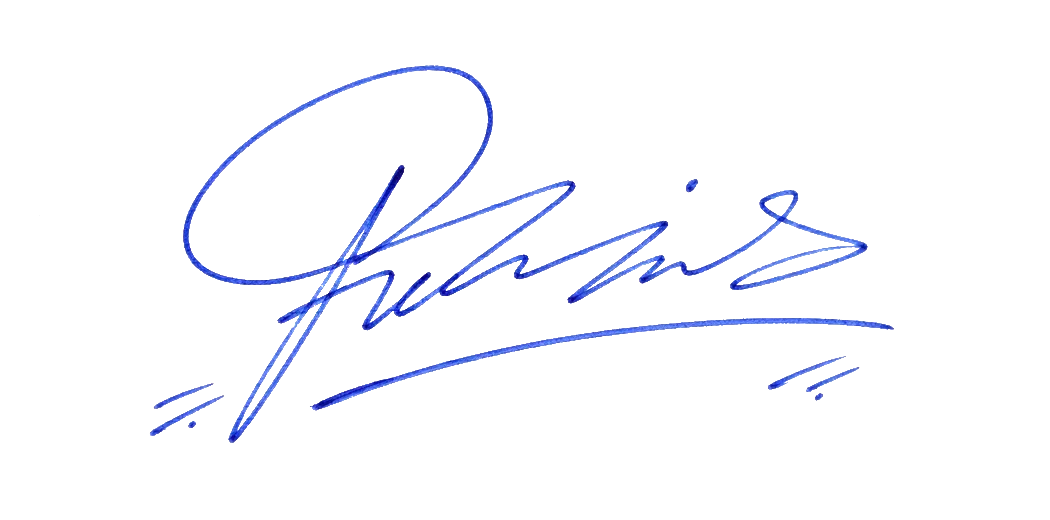
Start with the job waiting after the cleanup. Each workflow keeps the useful ink visible and points to the next document step.
A flat, evenly lit phone photo is enough for a clean first pass. Remove the paper locally, compare the edge, and keep the original nearby while you prepare an authorized document.
Open the signature background remover
A transparent PNG lets the Word page show through around the handwriting. Check the canvas, preserve the right margin, and place the image without stretching the strokes.
Read the Word placement guide
Older scans often carry gray paper, nearby ruling, or a soft shadow. Review those edges on a contrasting background before placing the cleaned mark in Acrobat or a form.
Clean a scanned signature
When several authorized files need the same first pass, queue them in the browser, review each result, and download separate PNGs or one ZIP without creating an online gallery.
Process signature scans in batch
A transparent PNG can sit over a line, a scanned page, or a colored form without a white rectangle. Use it only for a document and signer you are authorized to handle.
Place it precisely in Word Place it safely in a PDFLearn the small placement decisions that keep a signature legible, aligned, and easy to review.
Insert the PNG, choose a predictable wrap mode, and resize without stretching the handwriting.
Open the Word placement guide PDFAdd the visual mark in Acrobat and understand when a certificate-based signature is required instead.
Open the PDF placement guideSource quality, privacy, ink color, export format, and authorized use in one place.
Upload a JPG, PNG, or WebP photo. The light paper is processed locally and the darker ink is exported as a tightly cropped transparent PNG.
No. The selected image is read and processed by your browser on your device. The original photo and result are not sent to an image-processing server.
Use a sharp photo or scan with even light, a dark signature, and light paper. Keep the camera parallel to the page and crop out hands, stamps, and printed text.
Yes. Choose Original to preserve the photographed ink, or select Blue in the editor to create a consistent blue signature for your document.
Yes. Download the transparent PNG, then insert it as an image in Word or Adobe Acrobat.
Only when that person has explicitly authorized you to use the signature for the specific document.
Move Background removal slightly lower to preserve lighter strokes. A clearer source image and even lighting also improve thin or faded handwriting.
Yes. It is free to use in a modern browser, with no account, watermark, or upload required.
Yes. PNG preserves transparent pixels so the document remains visible behind the signature.
Yes. JPG, PNG, and WebP photos from a phone work best when the page is flat, evenly lit, and free of nearby marks.